MADE FOR MAC. OPEN SOURCE.
Keep every
little spark.
The link, the screenshot, that fleeting idea. A lightweight AI clipboard that remembers, so you can keep creating.
macOS 14+ · Apple Silicon & Intel · Free & open source
Your clipboard, with a little more life.
⇧⌘VOne shortcut awayIllustrated walkthrough · Sample content & scripted AI replies
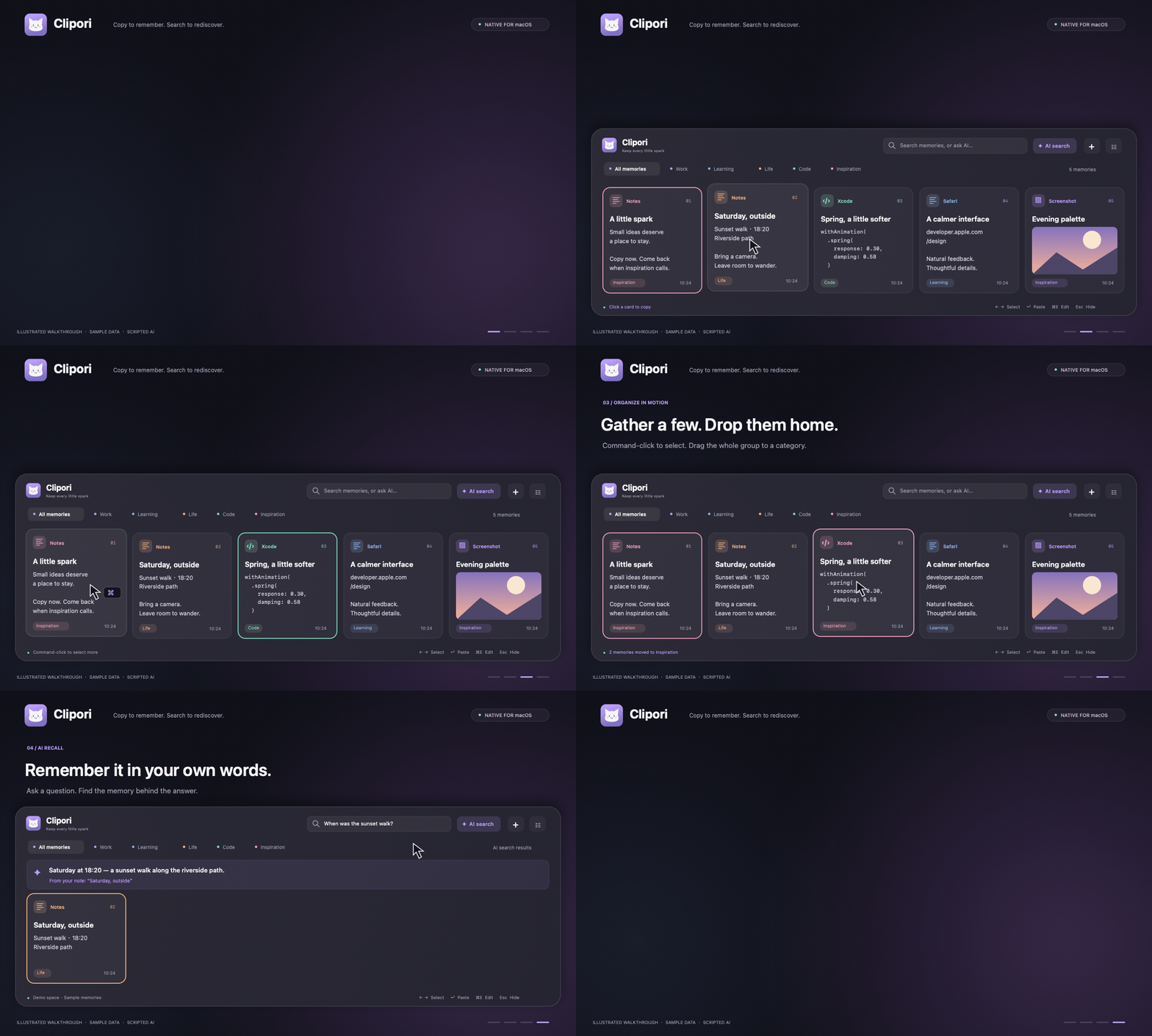
SMALL APP. A LITTLE MORE HEADSPACE.
Less searching. More doing.
Copy it once.
Come back anytime.
Text, links, screenshots. A small action becomes a little memory, ready whenever you need it.
⌘CYour everyday copy, remembered.Illustrated demos · Sample data · Swipe to explore
Local first. Always yours. History stays on your Mac. API keys stay in Keychain. AI sends your question and relevant text to the service you choose.
A NEW HOME FOR YOUR CLIPBOARD
Meet your next
favorite shortcut.
A few small steps, and you're ready.
No Xcode. No account to create.

- 1
Download & move to Applications
Open GitHub Releases. Choose arm64 for M-series Macs or x86_64 for Intel. Open the DMG or unzip, then drag Clipori.app into Applications.
Apple Siliconarm64Intelx86_64 - 2
Before the first launch
Current releases are not notarized by Apple. After downloading from this project's Releases, run this in Terminal to remove the app's quarantine flag:
xattr -dr com.apple.quarantine /Applications/Clipori.app - 3
Open Clipori. Copy something.
Clipori lives in your menu bar. Press ⇧⌘V to open the shelf. Copied text and images appear automatically.
Enable double-click to paste
Go to System Settings → Privacy & Security → Accessibility and enable Clipori. Without this permission, click a card to copy and press ⌘V in the destination app.
Connect your own AI
In Clipori Settings → AI, select OpenAI or Claude format, enter your base URL, model and API key, then test and save. History and keyword search work without AI. Automatic classification is optional.
A FEW LITTLE DETAILS
Good to know.
Is Clipori free?
The current version is free and open source under Apache 2.0. AI uses the service you configure, which may charge separately.
How long is my history kept?
New installs keep 30 days by default. Choose 1 day, 1 week, 1 month, 1 year, or forever. Pinned entries and Pinboards are kept until you remove them.
Does it sync with my iPhone?
This release is for Mac. An iPhone companion and iCloud sync are in development; cross-device sync is not ready for everyday use yet.
Can I save screenshots too?
Yes. Use ⌃⇧⌘4 to copy a screenshot selection to your clipboard. Clipori captures it automatically; press Space to preview. Screenshots saved only as files are not captured.
Make room for your next idea.
Let Clipori hold onto the little things.
Download for Mac